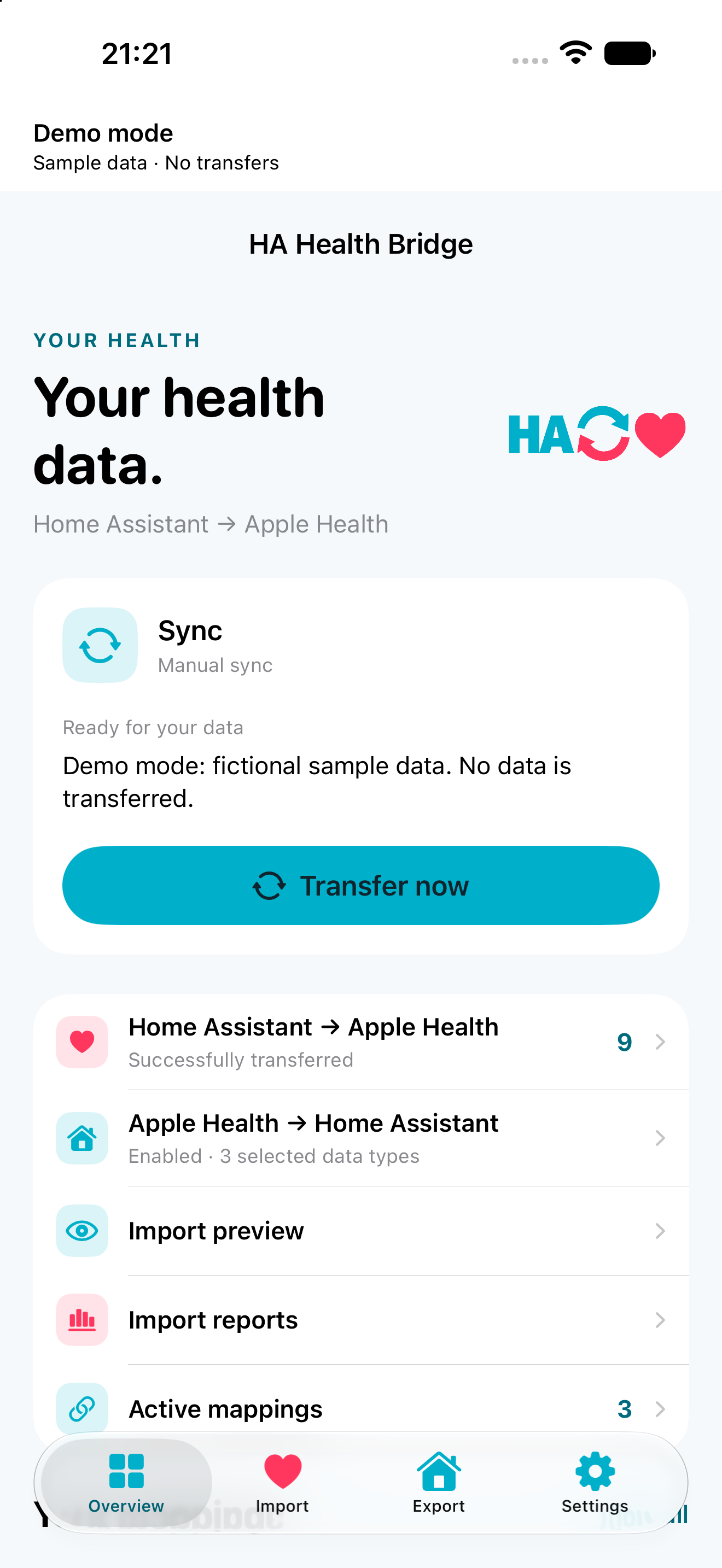
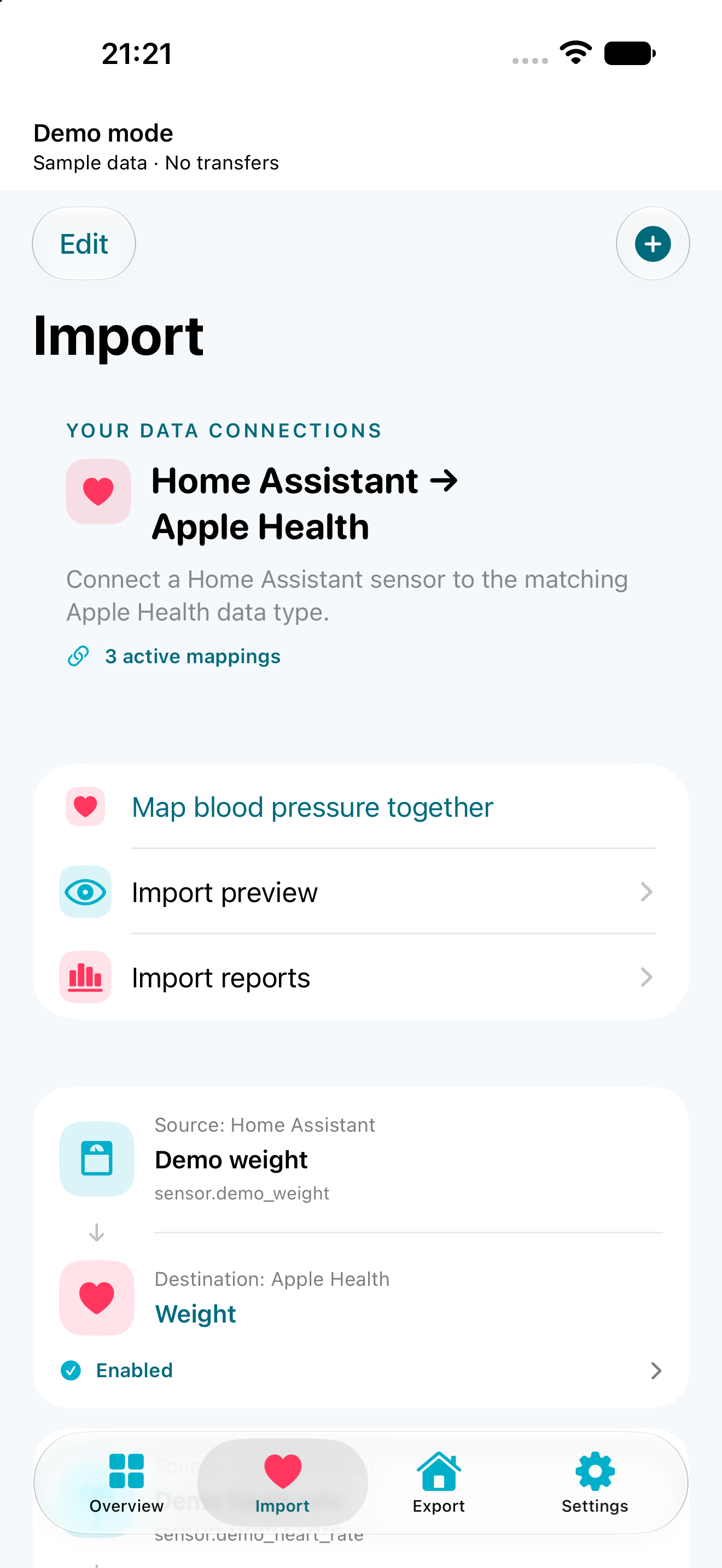
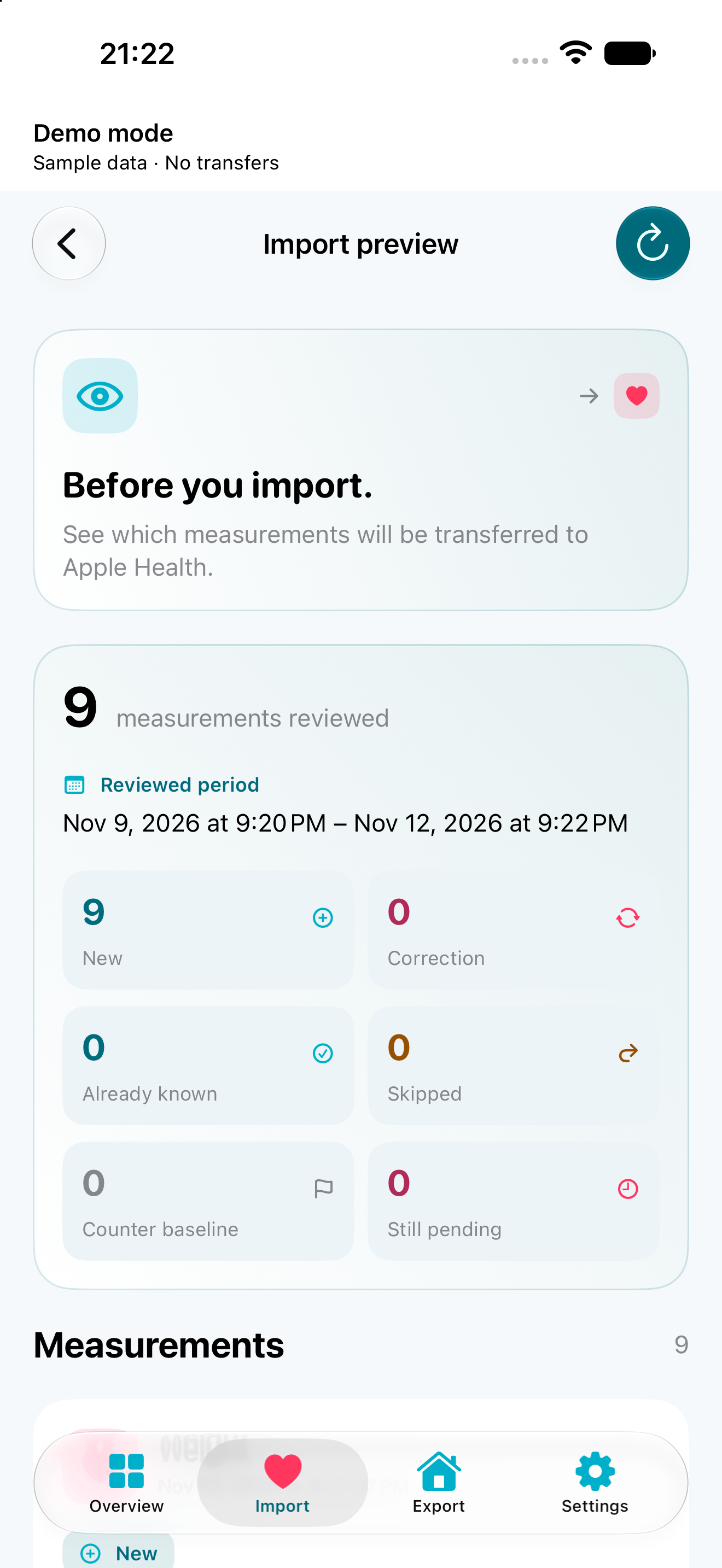
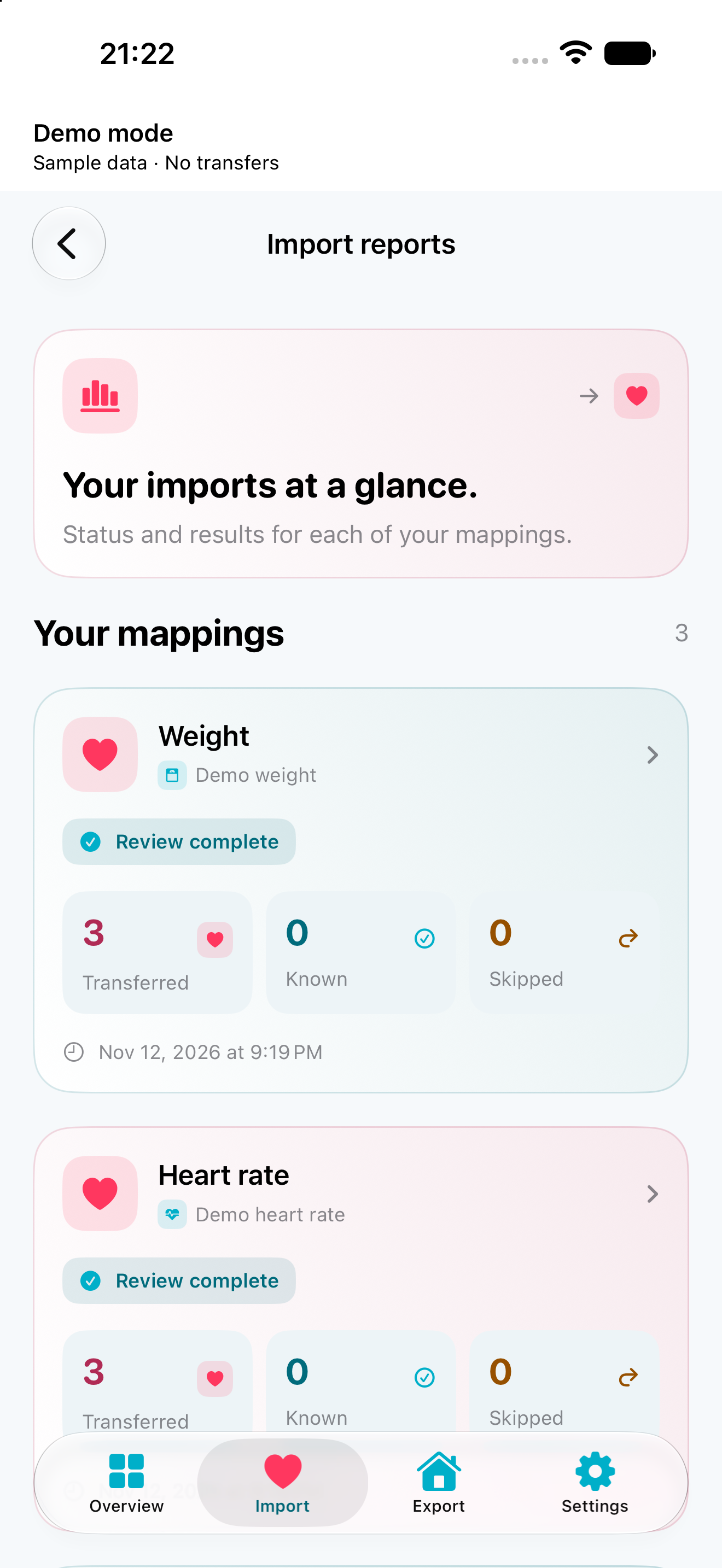
Illustrative data flow. Transfers do not require an additional HA Health Bridge cloud service.
Import first
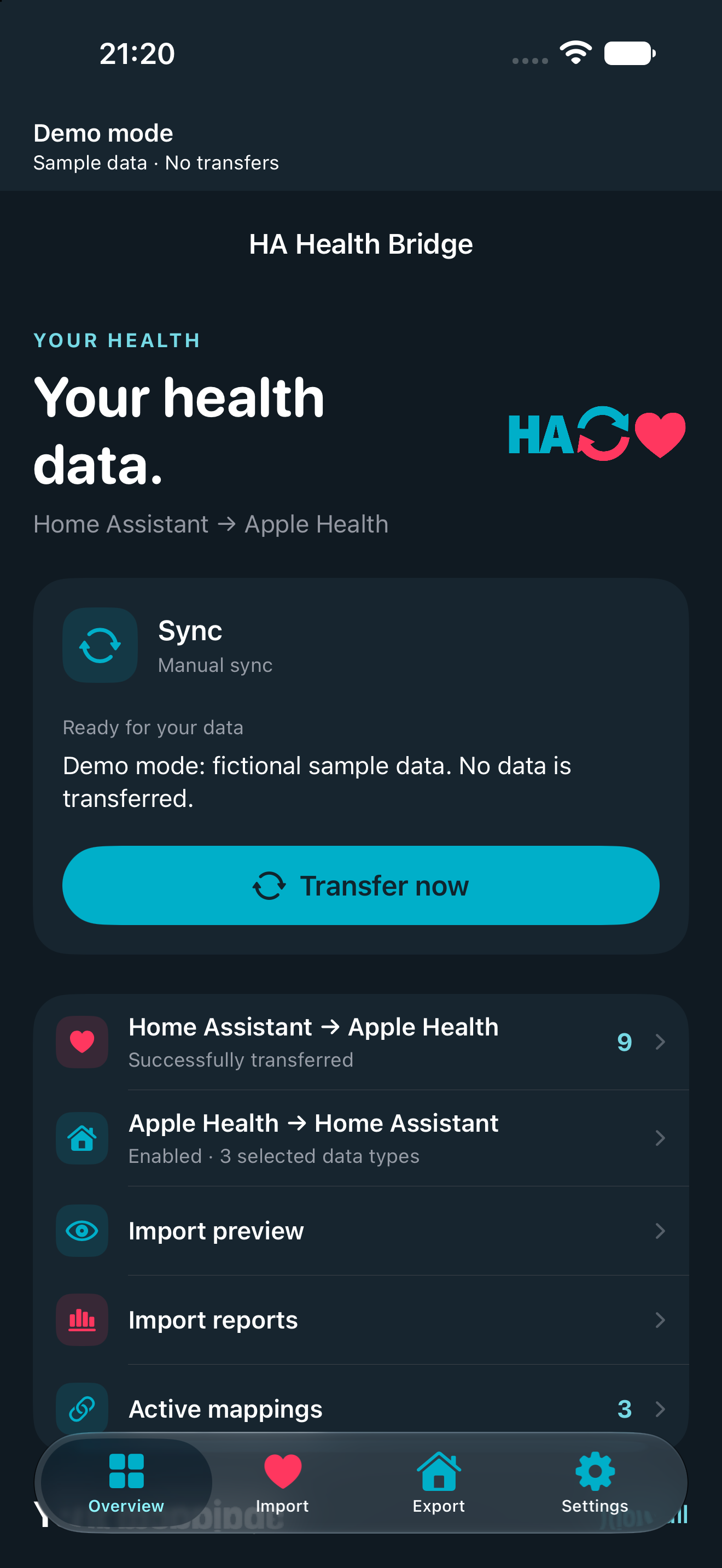
Your measurements in Apple Health.
Choose Home Assistant sensors and map them to Apple Health. An optional export back to Home Assistant is configured separately.
01 /
Home Assistant → Apple Health
Turn sensors into compatible Apple Health records.
Map measurements from states or attributes to an Apple Health data type. Inspect new, known and pending records in the import preview without writing to Apple Health. Reports then show the outcome for each mapping.
02 /
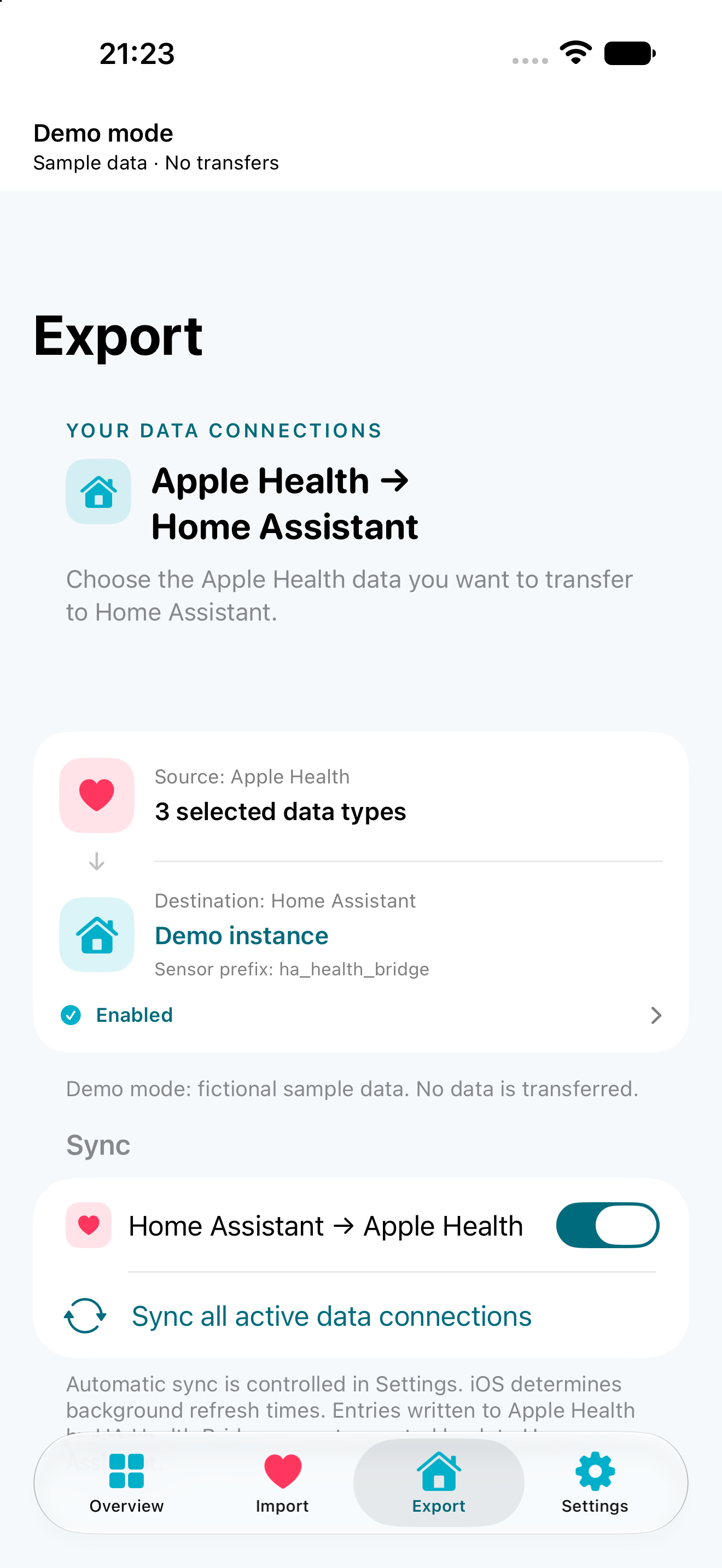
Optional: Apple Health → Home Assistant
An optional return path with a separate selection.
Depending on the type, send a latest available value, today's total or a sleep summary. Your Home Assistant instance manages the received values and their history.
The optional HA Health Bridge integration for Home Assistant 2026.11+ registers these values as sensors with stable identities. The public Marketplace repository contains the integration and its installation guide.
The same overview with dark surfaces and matching accent colors.
Setup
From connection to preview.
The setup assistant guides you through your server connection, data selection and Apple Health permissions.
Connect your instance
Sign in through your Home Assistant HTTPS page. Alternatively, enter a token or scan its QR code. mTLS with your own client certificate is optional.
Map your sensors
Choose the source entity, measurement and matching Apple Health data type. iOS requests the relevant permissions. Granting access does not itself transfer measurements.
Check and transfer
Inspect the import preview first. Start a manual transfer and review the reports. Automatic execution depends on iOS and your permissions.
Imports retrieve values from your Home Assistant instance without an additional app-provider cloud. Only a separately enabled export sends selected Apple Health data back.
Credentials and optional client certificates are stored in the device Keychain. The app does not store your Home Assistant password.
No advertising or analytics SDKs in the app. You can withdraw permissions, disconnect and delete local app data.
Before you start
Before the first sync.
Available transfers depend on iOS, data type, Home Assistant history and the permissions you grant.
What do I need to use HA Health Bridge?
An iPhone with iOS 17 or later, your own reachable Home Assistant instance, and permission for the Apple Health data types you select. Importable history must be available in Home Assistant.
How do internal and external addresses work?
External addresses use HTTPS. The full app variant can select an internal address on a saved home Wi-Fi. Internal HTTP is allowed only when that Wi-Fi is currently recognized. A configured HTTPS address remains usable without Wi-Fi recognition.
Will background transfers run at fixed times?
iOS determines the actual background execution times. A fixed schedule is not guaranteed. You can start a sync manually and check its status in the app.
Can I explore the interface without personal data?
The labelled demo mode uses fictional examples. It needs no sign-in and does not read or write Apple Health data. Choose Demo in the setup assistant, or Settings → About HA Health Bridge → Open demo mode.
HA Health Bridge transfers data and does not provide a diagnosis or treatment recommendation.